gCMOB Multiple Devices Guide: Manage Several DVRs, NVRs and Sites

Manage multiple devices in gCMOB: organize several DVRs and NVRs across homes and shops, naming systems, favorites, per-device notifications, and keeping a large camera list under control.

Rated 4.5/5 · 204.5k

Introduction

One camera system is simple to manage; a home, a shop, and a warehouse in the same gCMOB account is where organization starts to matter. The app happily holds many DVRs, NVRs, and standalone cameras, but finding the right channel quickly depends entirely on how deliberately you set the list up.

This guide covers naming, ordering, notifications, and daily habits for multi-site monitoring without the confusion. The main gCMOB Download for Android - CCTV Camera Monitoring App Guide page brings the download, the app facts and the FAQs together in one place.
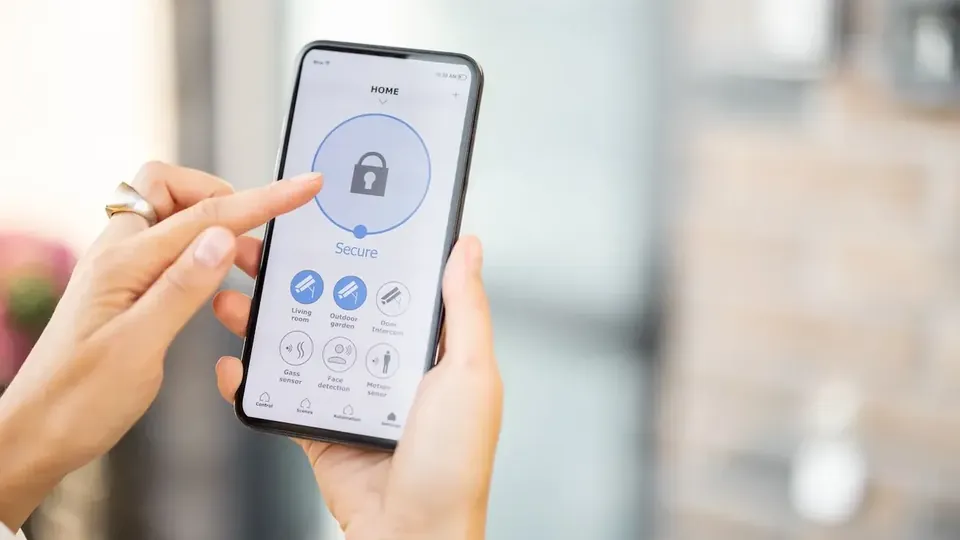
How gCMOB Organizes Multiple Devices

Each recorder or camera you add becomes one device entry with its own channels inside it. A four-channel DVR is one device with four channels; three sites might mean three devices and twenty channels in total.

Thinking in devices first and channels second keeps the structure clear. Every management habit in this guide follows that structure:

  • One recorder equals one device entry
  • Channels live inside their device
  • Standalone cameras are single-channel devices
  • Device order in the list is your working order
  • Clear names beat serial numbers everywhere

A Naming System That Survives Growth

Name devices by place and purpose, such as Home, Shop Front, or Warehouse, and rename channels by what they actually watch: Gate, Counter, Parking, Stock Room. Generic names like Camera 1 force you to memorize a map that your future self will forget.

Rename channels at the recorder or in the app as soon as a camera is installed, while the view is in front of you and the naming is obvious:

  • Name devices by location
  • Name channels by what they watch
  • Rename during installation, not later
  • Avoid numbering-only names
  • Keep names short for list views

Ordering Devices and Using Favorites

Put the devices you check daily at the top of the list. Most users open the same two sites constantly and the rest rarely, so order should follow attention, not installation date.

Where your version supports favorite channels, star the handful of views you open every day, such as entrances and counters. Favorites turn a twenty-channel list into a five-second check:

  • Order devices by daily importance
  • Favorite your most-checked channels
  • Review order when a new site is added
  • Keep rarely used devices lower
  • Favorites reduce missed checks

Notifications Across Several Sites

Motion alerts from three sites can bury a phone in an hour. Decide per device which channels deserve push alerts, usually entrances and restricted areas, and let low-value channels record silently for playback review instead.

Different sites may also deserve different alert hours. A shop might alert all night, while a home system alerts only when the family is out, following the recorder's own schedules:

  • Alert only high-value channels
  • Set schedules per site, not globally
  • Silent recording beats alert fatigue
  • Review alert volume weekly at first
  • Too many alerts means alerts get ignored

Managing Access for Staff and Family Across Sites

Multi-site setups usually mean multiple viewers. Give each person a user account on the recorders with only the sites and channels their role needs. A shop assistant does not need the warehouse admin view, and nobody should share one admin password across a whole business.

When someone leaves, removing their account on each device closes their access completely, which is only possible if accounts were individual from the start:

  • Individual accounts for every viewer
  • Limit each account to its sites
  • Never share one admin password widely
  • Remove leavers on every device
  • Keep an owner-only list of admin details

A Daily Routine for Multi-Site Checking

A fast routine keeps multiple sites genuinely monitored instead of merely installed. Open favorites, glance at each key view, check any device showing offline, and review the day's alert clips for entrances.

The whole pass takes a few minutes in gCMOB when the list is organized, and it catches the dead camera or full hard drive before those become missing footage:

  • Start from favorites, not the full list
  • Investigate any offline device same day
  • Review entrance alerts daily
  • Spot-check one playback per site weekly
  • Organization makes the routine possible

When to Split Devices Across Two Phones or Accounts

Very large setups sometimes outgrow one person's app. Splitting by purpose works better than splitting by count: one phone carries the home sites, another carries business sites, or a manager's account carries only their branch while the owner carries everything.

The split should follow responsibility. Whoever acts on a site's alerts should be the one whose app foregrounds that site:

  • Split by responsibility, not by count
  • Alert owners foreground their sites
  • Owner keeps the complete list
  • Document who holds which sites
  • Avoid duplicate alert storms on both phones

Auditing a Large Device List

Twice a year, audit the list itself: open every device, confirm it connects, confirm every channel still shows the view its name claims, and delete test or decommissioned devices that installers left behind.

Dead entries are not harmless. They slow every app start, confuse new staff, and hide the one real offline device in a crowd of ghosts:

  • Open every device during the audit
  • Verify names against live views
  • Delete decommissioned entries
  • Note firmware or drive warnings
  • Schedule the audit like any maintenance

Conclusion

Multiple DVRs and sites in gCMOB stay manageable when the list is treated as a system: devices named by place, channels named by view, favorites carrying the daily checks, alerts reserved for channels that deserve them, and individual accounts for every person who watches.

Set that structure up once and a growing camera network stays a five-minute daily routine in the app, instead of a scrolling list nobody fully trusts. The related walkthrough in gCMOB Device Health Monitoring Guide picks up the neighbouring topic in full. The companion guide gCMOB Push Notifications and Motion Alerts Setup Guide covers the neighbouring topic in the same step-by-step style.